
Is your CCTV camera feed suddenly blank? That sinking feeling when you check your security system and see nothing but a black screen is never a good one.
You rely on your cameras to keep your property safe, and video loss can leave you feeling vulnerable and frustrated. But don’t panic! This isn’t necessarily a sign of a major system failure. Often, CCTV camera video loss is a solvable problem with a few straightforward steps.
We’ll guide you through the most common causes of video loss and show you exactly how to fix them, getting your eyes back on your property in no time.
Identify The Video Loss
Spotting video loss is the first step. You need to know what you’re seeing. This helps pinpoint the problem. Different issues show different signs. Recognizing these signs is key. It guides your troubleshooting. Don’t ignore strange video behavior. It signals a potential failure.
Sudden Black Screen
Your screen goes black. No image appears. This happens instantly. The camera just stops showing. It’s a clear sign of loss. Something is blocking the signal. Or the camera is off.
Flickering Or Distorted Footage
The video jumps. It looks wavy. Lines might appear. Colors may be wrong. The image is not clear. This means signal interference. Or a bad cable connection. The feed is unstable.
Intermittent Signal Drops
The picture comes and goes. It works sometimes. Then it disappears. This is a signal issue. The connection is not steady. It’s a frustrating problem. The feed is unreliable.
Complete Recording Absence
Your DVR shows no recordings. The timeline is empty. No events are logged. The system recorded nothing. This means a storage failure. Or a recording setting issue. Your history is gone.
Credit: www.aspireyouthandfamily.com
Check Connections
Loose connections are common culprits. Video loss often starts here. Checking your cables is your first step. It is a simple fix.
Power Cables
Cameras need power. Check the power adapter. Is it plugged in securely? Inspect the cable itself. Look for damage. A faulty cable stops video. Ensure the camera gets power.
Video Cables (bnc, Hdmi)
Video signals travel through cables. BNC connectors are common. HDMI is used too. Make sure they are tight. Push them in fully. A loose BNC causes static. An unplugged HDMI means no picture. Wiggle them gently. They should not move easily. Damaged cables need replacement.
Network Cables (ip Cameras)
IP cameras use network cables. These are often Ethernet cables. Check the cable at both ends. It connects to the camera. It connects to your router or switch. Ensure it is seated properly. A click confirms connection. Loose network cables mean no data. No data means no video feed.
Secure All Ports
Every connection point matters. Ports on the camera. Ports on the recorder. Ports on your network gear. Gently push each cable in. They must feel secure. A wobbly connection is bad. This prevents signal interruption. Take your time here. It is a vital check.
Inspect The Camera
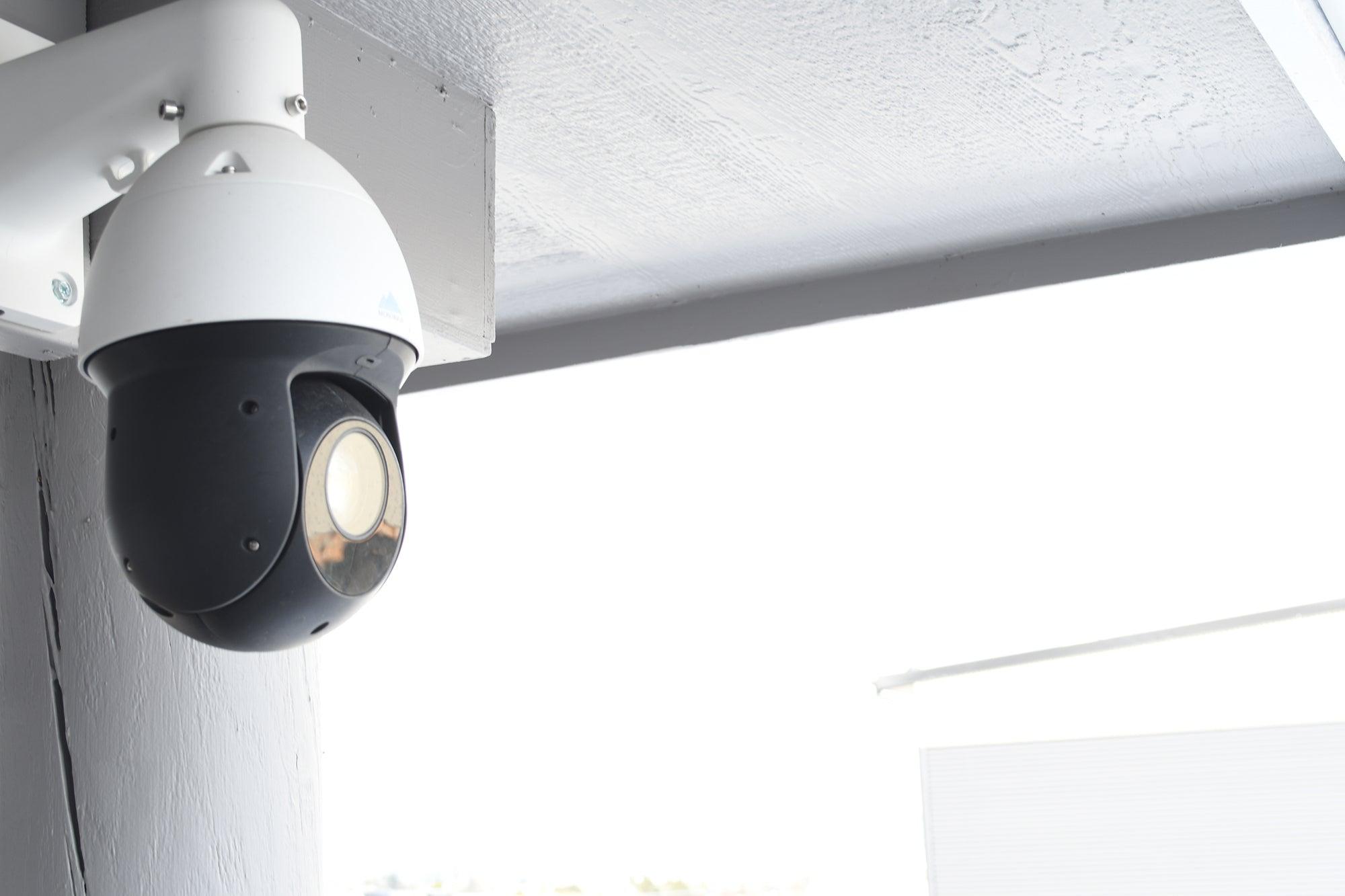
First, inspect the camera itself. Check for any visible damage. Ensure the lens is clean and unobstructed.
Your CCTV camera is the first place to check. Simple issues can cause video loss. A quick inspection reveals many problems.Lens Clarity
Is the lens dirty? Smudges block the view. Dust and grime obscure the image. Wipe the lens gently. Use a soft, lint-free cloth. This restores a clear picture.Physical Damage
Check the camera body. Look for cracks or dents. Is the housing secure? Loose connections cause problems. Ensure everything is tight.Infrared (ir) Functionality
See the IR lights? They help at night. Are they lit? If not, night vision fails. Dust or obstructions may block them. Clean the IR emitters.Camera Power Led
Does the camera have a power light? A solid LED means power. A blinking light shows an issue. No light means no power. Check the power source.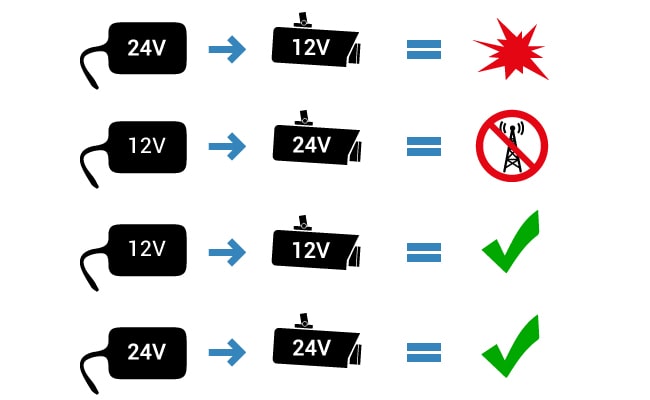
Credit: reolink.com
Examine The Dvr/nvr
The Digital Video Recorder (DVR) or Network Video Recorder (NVR) is the brain of your CCTV system. It records and manages all camera feeds. Video loss often starts here. Checking your DVR/NVR is a crucial step. It helps pinpoint the source of the problem.
Power Supply
Your DVR/NVR needs power. Check its power adapter. Is it plugged in securely? Is the power outlet working? Try a different outlet. A faulty power supply causes many issues. Ensure it has enough wattage.
Hard Drive Status
The hard drive stores your video. A full or failing drive stops recording. Access your DVR/NVR’s menu. Look for hard drive information. Check its health status. If it shows errors, replace it. A new drive may fix video loss.
System Logs
DVRs/NVRs keep system logs. These logs record errors. They show important events. Access the system logs. Look for error messages. These messages offer clues. They can guide your troubleshooting.
Firmware Updates
Outdated firmware causes problems. It can lead to instability. Check for firmware updates. Visit the manufacturer’s website. Download the latest version. Install the update carefully. This often resolves bugs. It can restore video recording.
Troubleshoot Network Issues (ip Cameras)
Network problems often cause CCTV camera video loss. This is especially true for IP cameras. These cameras rely on your network. They send video data over it. Let’s explore common network issues. We will fix them to restore your video feeds.
Router/switch Connectivity
Check your camera’s network cable. Is it plugged in firmly? Look at your router or switch. Are the lights blinking? A solid light means connection. A blinking light shows activity. Try a different network cable. Test another port on the router. This helps isolate the problem. A loose connection loses video.
Ip Address Conflicts
Each device needs a unique IP address. Cameras and other devices share the network. Sometimes, two devices get the same IP. This causes a conflict. Your NVR or DVR may show errors. Check your IP camera’s settings. Ensure it has a unique IP address. Your router often assigns these addresses. Review your router’s DHCP settings. Make sure the range is correct. Avoid manual IP assignments if unsure.
Bandwidth Limitations
Video streams use network bandwidth. High-resolution cameras use more. Too many cameras strain your network. This can lead to video loss. Check your network’s total capacity. Ensure it can handle all cameras. Reduce camera resolution if needed. Lower the frame rate per second. Close unnecessary network applications. This frees up bandwidth for cameras.
Wireless Signal Strength
Wireless IP cameras need a strong signal. A weak signal causes dropouts. Check the signal strength indicator. See it on your camera’s interface. Or check your NVR/DVR. Move the camera closer to the router. Remove obstructions like walls. Metal objects block Wi-Fi signals. Consider a Wi-Fi extender. This boosts signal coverage. A stable connection is crucial.
Address Storage Problems
Storage issues often cause CCTV video loss. Your system needs space for recordings. Check your storage. Fix these problems quickly. You will see your video again.
Full Hard Drive
Your hard drive is full. It cannot save new video. Delete old recordings. Free up space. Your camera will record again.
Failing Hard Drive
The hard drive is failing. It cannot store data reliably. Replace the old hard drive. Install a new one. This solves recording problems.
Recording Schedule Conflicts
Recording schedules conflict. Some recordings might be skipped. Check your schedule settings. Ensure no overlaps. Set a clear recording plan. Video loss stops.
Data Corruption
Recorded data is corrupt. It becomes unreadable. This can happen with failing drives. Reformat the hard drive. This erases bad data. Start fresh recordings.
Software And Settings
Software and settings play a big role. Many video loss issues stem from these. We will explore common software problems. Fixing them is often straightforward. Let’s dive into the details.
Camera Configuration
Check your camera’s IP address. Ensure it is correct. Verify the subnet mask. Confirm the gateway is set. Restart your camera. Reset it to factory defaults. Reconfigure its network settings. Make sure it connects properly.
Dvr/nvr Software Settings
Open your DVR or NVR. Navigate to network settings. Confirm the IP address. It must match the camera. Check the port forwarding. Ensure ports are open. Update your DVR/NVR firmware. Install the latest version. Reboot the DVR/NVR unit. This often clears glitches.
Motion Detection Settings
Motion detection can cause issues. Too much sensitivity creates false alarms. This can overload the system. Lower the sensitivity level. Adjust the detection zones. Ensure they cover the right areas. Disable motion detection briefly. Test if video returns. If it does, fine-tune settings.
Remote Access Issues
Remote access needs correct setup. Verify your port forwarding rules. Check your router’s firewall. It might block connections. Ensure the correct ports are open. Test access from another network. Use a mobile device. Confirm your DDNS is updated. Your IP address may change.
Advanced Diagnostics
Advanced diagnostics help pinpoint video loss causes. These steps go deeper. They test individual components. This isolates the problem effectively.
Test With A Different Camera
A faulty camera causes loss. Swap it out. Use a known good camera. Connect it to the same port. Does video return? This tells you about the camera.
Test With A Different Cable
Cables can fail. A damaged cable stops video. Try a new cable. Use a different Ethernet or BNC cable. Connect it securely. See if this fixes the problem.
Test With A Different Power Supply
Cameras need steady power. An unstable power supply causes issues. Test with another adapter. Ensure it has correct voltage. This checks the power source.
Factory Reset Camera
Camera settings can be wrong. A factory reset restores defaults. Find the reset button. Press it for a few seconds. This clears corrupt settings.
Factory Reset Dvr/nvr
The recorder might have issues. Resetting the DVR or NVR helps. This restores its original settings. Consult your manual first. This step can resolve complex problems.
When To Seek Professional Help
Sometimes, you can fix CCTV video loss yourself. Other times, it is best to call an expert. Knowing when to ask for help saves time. It also prevents further damage.
Persistent Issues
You tried basic fixes. Still no video. The problem keeps coming back. This suggests a deeper cause. A professional can diagnose it. They have specialized tools. They understand complex systems.
Hardware Failure Suspected
Cameras break. Cables can fail. The recorder might be faulty. If you suspect bad hardware, get expert advice. They can test components. They can replace parts quickly. This avoids guesswork.
Complex Network Setups
Your system uses a network. It has many cameras. The network is intricate. Troubleshooting becomes difficult. Network issues are tricky. Professionals understand network configurations. They can untangle complex links.
Data Recovery Needs
Video loss can mean lost data. Important footage might be gone. You need special tools for this. Experts can attempt data recovery. They have advanced software. They can retrieve critical information.

Credit: www.youtube.com
Frequently Asked Questions
What Causes Cctv Video Loss?
Video loss can happen for many reasons. It might be a loose cable. The camera itself could be broken. Network issues can also cause it.
How Do I Check Cctv Camera Connections?
Inspect all cables carefully. Make sure they are plugged in tightly. Look for any visible damage to the wires. Reconnect them if they seem loose.
Can A Faulty Power Supply Cause Video Loss?
Yes, a bad power supply is a common culprit. The camera needs steady power to work. Check the power adapter and outlet. Try a different power source if possible.
What If My Cctv Network Is The Problem?
Check your network cables and router. Ensure everything is connected properly. Restart your router and modem. A stable network is crucial for video.
How Do I Troubleshoot A Blank Cctv Screen?
First, check the camera’s power. Then, verify all cable connections. Restart your recording device. The screen might just need a refresh.
When Should I Replace A Cctv Camera?
Consider replacement if the camera is old. If it has physical damage, replace it. If troubleshooting doesn’t fix video loss, it’s time.
How Often Should Cctv Cameras Be Maintained?
Regular checks are important. Inspect cables and connections monthly. Clean camera lenses as needed. This prevents many common issues.
Conclusion
Don’t let video loss disrupt your security. Troubleshooting these issues is often simple. Check connections first. Ensure power is stable. Restart your system. These steps solve many problems. Regular maintenance prevents future loss. Keep your cameras running smoothly. Your peace of mind matters.