
Faxing Essentials
Sending a fax from your HP OfficeJet 3830 is simple. First, place your document on the scanner. Then, use the printer’s keypad to dial the fax number. Finally, press the start button to send your fax.
Faxing might seem old-fashioned. Your HP OfficeJet 3830 can still send faxes. It’s a useful skill. This section covers faxing basics. Get ready to send your first fax.What You Need To Fax
You need a few things. First, your HP OfficeJet 3830 printer. Make sure it’s set up. Connect it to a phone line. This is very important. You also need a document to fax. A physical copy works best.Understanding Fax Terminology
Some words are common. A fax machine sends documents. It uses a phone line. A fax number is like a phone number. It identifies the recipient. A cover page is optional. It introduces your fax. It lists sender details. It lists recipient details. Your HP OfficeJet 3830 can fax. It’s not difficult. Just follow the steps. You will send faxes soon.Setting Up Your Hp Officejet 3830 For Faxing
Setting up your HP OfficeJet 3830 for faxing is simple. Follow these easy steps. You will be sending faxes soon. Let’s get started.
Connecting The Phone Line
First, find a phone jack. It must be a standard phone jack. Get a phone cord. Plug one end into the printer. Use the correct port. It is usually labeled “Line” or “Tel”. Plug the other end into the wall jack. Make sure it is secure. This connects your printer to the phone network. This is essential for sending faxes.
Configuring Fax Settings On The Printer
Now, turn on your printer. The control panel is your guide. Navigate to the fax menu. You will see several options. Select “Fax Setup” or similar. Follow the on-screen prompts. You may need to enter your country. Set the correct time and date. This helps organize your faxes. You might also set a fax header. This identifies your faxes. It shows your name and number. Complete all required fields. This ensures proper fax operation.
Testing Your Fax Connection
It is time to test. Your printer has a test function. Find “Fax Test” or “Test Connection”. Select this option. The printer will dial a test number. It checks the phone line. It verifies the connection quality. Wait for the results. A successful test means you are ready. A failed test needs attention. Check your phone line connections. Ensure all settings are correct. Try the test again. Successful faxing is now possible.
Sending A Fax
Sending a fax is simple. Your HP OfficeJet 3830 makes it easy. You have options for sending. Let’s explore them.
From The Printer’s Control Panel
Your printer has a control panel. Use the touchscreen. Navigate to the Fax option. Select Send Fax. Enter the fax number. You can scan a document. Place it on the scanner. Press Start. Your fax goes out.
Using The Hp Smart App
Get the HP Smart app. Download it on your phone. Connect your printer. Open the app. Find the Fax feature. Tap Send Fax. Add your document. Enter the fax number. Send it from your phone. Easy, right?
Sending To A Fax Number
Need to send one fax? Use the control panel. Or use the HP Smart app. You need the correct number. Dial it carefully. Confirm the number. Your document will transmit. You get a confirmation. It’s sent successfully.
Sending To Multiple Numbers
Want to send to many people? The app is best. Use the HP Smart app. Add multiple fax numbers. You can send one document. Send it to everyone at once. Save time and effort. Your message reaches all.

Credit: www.ebay.com
Receiving A Fax
Faxing from your HP OfficeJet 3830 is simple. Just follow the on-screen prompts. Your documents will send quickly.
Your HP OfficeJet 3830 can receive faxes. This means documents can come directly to your printer. It’s a simple process. You can set it up to answer automatically. Or you can answer calls yourself. Let’s explore how.Setting Up Auto Answer
Your printer can answer calls automatically. This is called Auto Answer. It’s very convenient. You do not need to be present. The printer will get the fax. Access the printer’s control panel. Navigate to the Fax settings. Find the Auto Answer option. Turn it ON. The printer is now ready. It will answer incoming fax calls.Manually Answering A Call
Sometimes you prefer manual answering. You can pick up the phone. Listen for fax tones. Then send the fax. When the printer rings, pick up the phone. Listen carefully. You will hear a fax tone. It sounds like beeps. Press the Start Fax button. Your printer will then receive the fax.Checking Incoming Faxes
You need to check for received faxes. Your printer stores them. You can print them. Or view them on your computer. Look at the printer’s display screen. It shows recent activity. It will indicate new faxes. You can print the fax from here. Connect your computer to the printer. Use the HP software. You can view faxes there.Advanced Fax Features
Your HP OfficeJet 3830 does more than just send faxes. It offers smart features. These features make faxing easier. They save you time. Discover these advanced functions.
Fax Forwarding
Forward faxes to another number. This is convenient. You get important documents anywhere. Set this up in printer settings. It’s a simple process.
Fax To Email
Receive faxes as emails. Your printer scans the document. It sends it to your inbox. Check your email for faxes. This is very handy. You don’t miss anything.
Scheduling Faxes
Send faxes later. Program the time you want. Your printer sends it automatically. This is great for busy days. Plan your faxing tasks.
Using The Document Feeder For Faxes
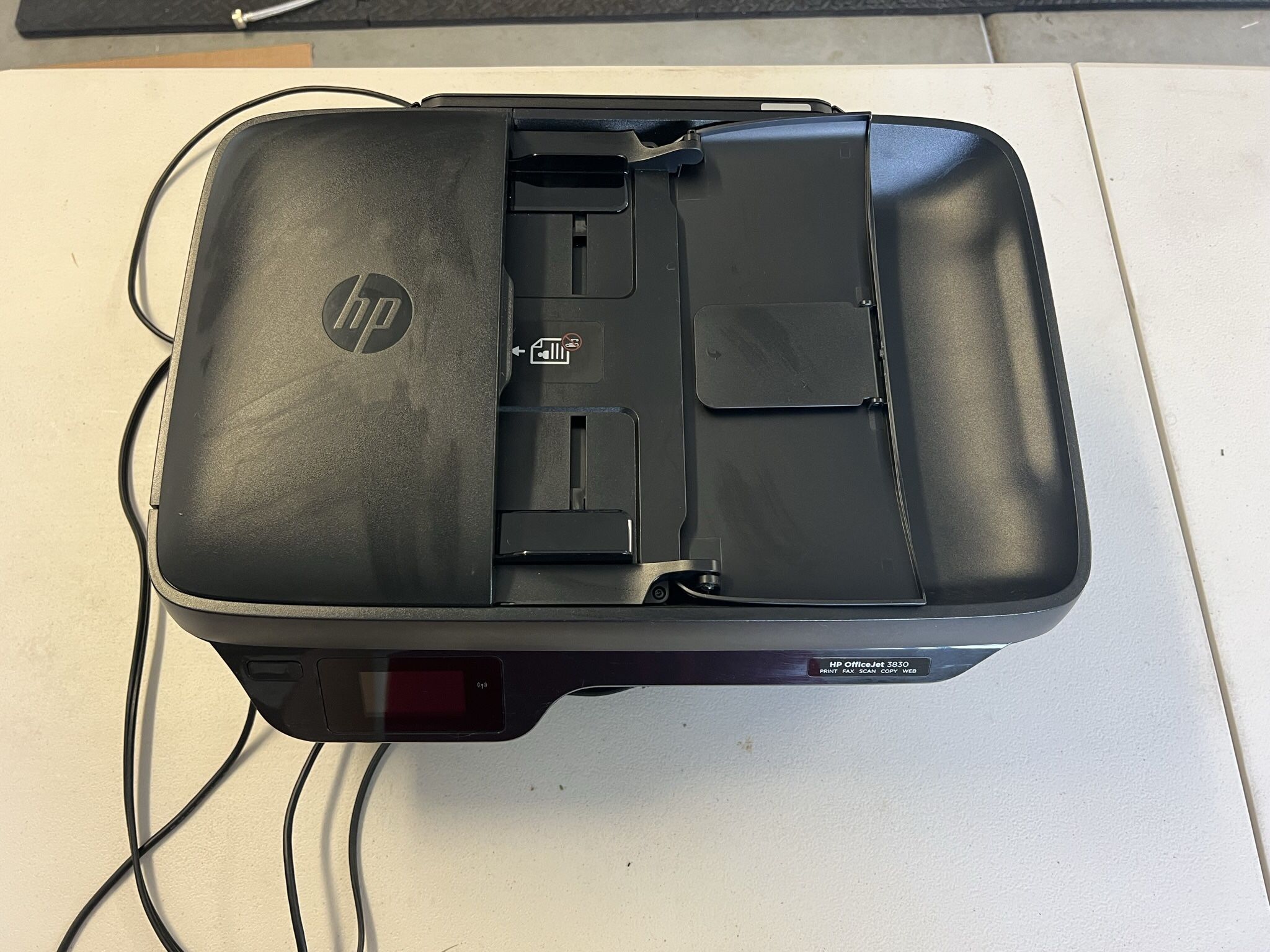
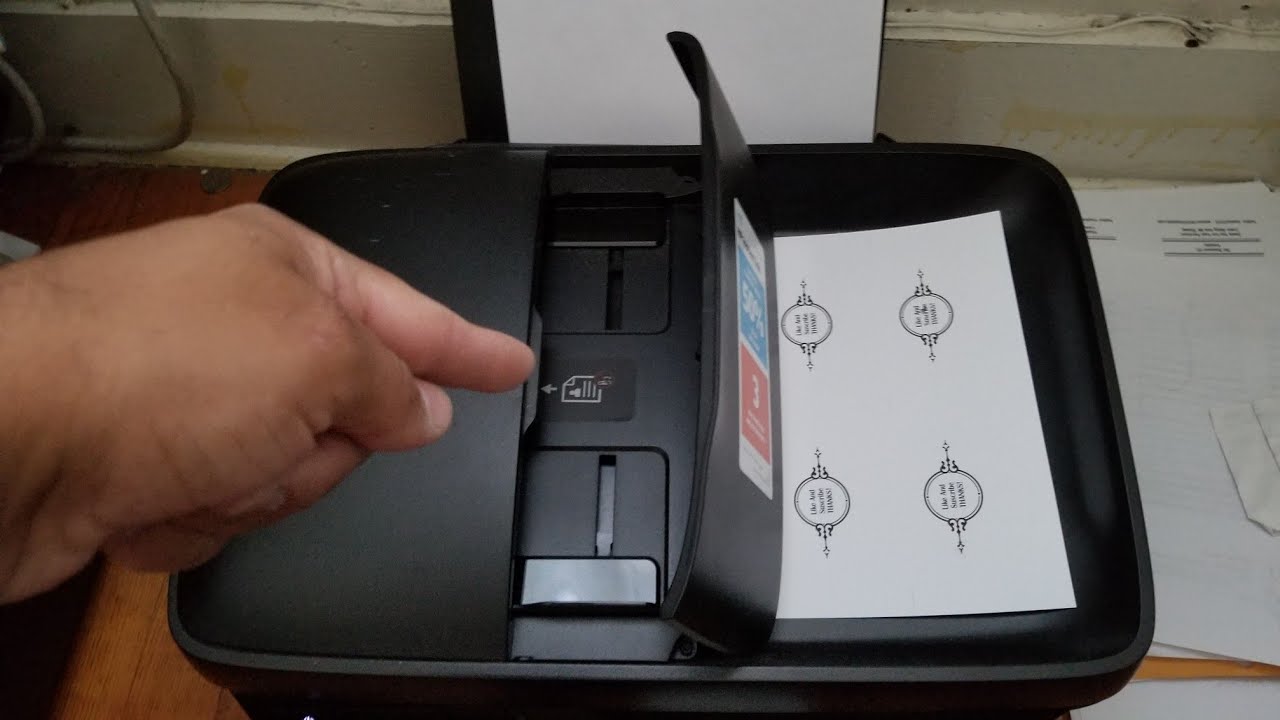
Fax multiple pages easily. Use the automatic document feeder. Place papers in the tray. The printer scans them. Send them as one fax. It handles them quickly. No need to scan page by page.
Credit: whensolarinstallation.dk
Troubleshooting Fax Issues
Faxing with your HP OfficeJet 3830 is simple. Follow these steps to send faxes easily. Troubleshoot common fax problems if needed.
Troubleshooting Fax Issues Fax problems happen. Your HP OfficeJet 3830 might not send. It might not receive. This section helps you fix it. We cover common problems. We offer simple solutions.Common Fax Errors
Error messages appear. They tell you what is wrong. Check the display screen. It shows the error code. Look up the code. Your printer manual helps. Search online for solutions.Poor Fax Quality
Faxes look unclear. Lines are faint. Ink smudges are present. Check your print quality settings. Use good quality paper. Make sure the document is clean. Remove any creases. Place the document correctly. The scanner glass needs cleaning. Wipe it gently.Failed Transmissions
Your fax won’t send. The connection might be bad. Check the phone line. Ensure it is plugged in securely. Try a different phone line. Dialing problems can occur. Verify the fax number. Remove any extra characters. Ensure the phone line works. Make a voice call.No Dial Tone
Your printer cannot dial. It needs a dial tone. Check the phone cable. It must connect to the correct port. The phone line must be active. Test it with a phone. Make sure the phone service is on. Some phone systems block fax tones. Adjust your phone settings.Faxing Best Practices
Faxing effectively requires care. Good practices ensure your faxes arrive clearly. They also confirm correct delivery. Follow these tips for successful faxing.
Ensuring Document Clarity
Start with clear originals. Use a clean scanner glass. Scan at a high resolution. Make sure the document is straight. Avoid shadows on the page. This helps the receiving machine. Your fax will be easy to read.
Verifying Fax Numbers
Double-check the fax number. Dialing errors are common. Confirm the area code. Verify the country code too. Send a test fax first. This confirms the number is correct. It saves you time later.
Maintaining Your Printer For Faxing
Keep your HP OfficeJet clean. Dust can affect scans. Ensure the ink or toner is full. Low levels cause poor copies. Update your printer’s firmware. This improves performance. A well-maintained printer faxes better.
Credit: www.youtube.com
Conclusion
Faxing from your HP OfficeJet 3830 is simple. Follow these steps. You can send documents easily. No more trips to the print shop. Your printer handles it all. Enjoy convenient faxing now. It works.