
Is your Smartboard acting up? Lines might be off, or your touch isn’t quite where you expect it to be.
Don’t worry, it’s a common issue, and fixing it is usually simpler than you think. You can get your interactive whiteboard working perfectly again with a quick calibration. This guide will walk you through exactly how to calibrate your Smartboard, step-by-step.
You’ll be back to smooth, accurate interaction in no time!
Why Calibrate?
Calibration ensures your Smartboard works right. It makes touch accuracy perfect. This means lessons are smooth and frustration-free.
Your Smartboard is a powerful tool. It enhances lessons and presentations. Sometimes, it does not work right. Calibration fixes these problems. It makes your Smartboard work as it should. This section explains why calibration is important.Touch Accuracy Issues
Does your board miss your touch? You tap one spot. The board registers another. This is frustrating. It slows you down. Calibration corrects this. It aligns the screen. Your touches land where you want them.Drifting Cursor
Is your cursor moving on its own? It seems to have a mind of its own. This makes drawing hard. It makes selecting items difficult. Calibration stops the drift. It anchors the cursor. It stays put.Inconsistent Response
Sometimes the board is fine. Other times it is not. You press. Nothing happens. You press again. It works. This inconsistency is a problem. Calibration makes the response steady. It is always reliable. Your board works every time.
Credit: www.youtube.com
Getting Started
Calibration ensures your Smartboard works well. It makes touch accurate. This guide helps you start calibration. Follow these simple steps.
Locate Calibration Tool
Find the Smartboard software. Look for the calibration utility. It is usually in the settings. Sometimes it is on the desktop. Open the tool. A prompt will appear.
Prepare The Surface
Clean your Smartboard screen. Use a soft, lint-free cloth. Avoid harsh chemicals. A clean surface helps accuracy. Remove any dirt or smudges. This is important for good results.
Gather Necessary Tools
You might need a stylus. The Smartboard often comes with one. A soft cloth is useful. Ensure your computer is on. The Smartboard should be powered too. These items help the process.
Step-by-step Calibration
Calibrating your Smartboard ensures accurate touch input. This process aligns the screen with your touch. Follow these simple steps. You will get precise results.
Initiate Calibration
Locate your Smartboard software. Open the calibration tool. You will see a prompt. This starts the calibration.
Touch The Targets
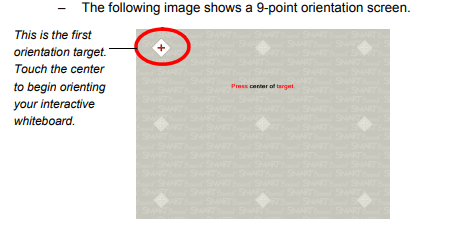
Targets will appear on screen. Touch each target precisely. Use your finger or a stylus. Do not slide your finger. Lift your finger after touching. Repeat for all targets.
Complete The Process
The Smartboard confirms calibration. It may ask for confirmation. Tap ‘Yes’ or ‘OK’. Your Smartboard is now calibrated. Enjoy accurate touch interaction.
Troubleshooting Common Issues
Smartboard calibration can fix touch problems. Follow simple steps to realign your screen. This ensures accurate interactions every time.
Smartboard calibration can sometimes be tricky. Do not worry. Many common problems have simple fixes. We will help you through them. This section helps you solve these issues. Get your Smartboard working right.Calibration Fails Repeatedly
Calibration may fail. Try cleaning the screen. Dirt interferes with touch. Restart your Smartboard. A simple reboot often helps. Check your projector alignment. It needs to be precise. Ensure the projector is stable. Loose connections cause problems. Verify all cables are secure. Update your Smartboard software. Outdated software can cause errors.Inaccurate Touch Points
Touch points may be off. This is frustrating. Recalibrate your board. Follow the steps carefully. Make sure your hands are clean. Oils can affect touch. Avoid wearing gloves. Most gloves do not work. Check for screen damage. Cracks disrupt touch accuracy. Ensure your projector is focused. A blurry image causes issues. Adjust projector brightness. Too much or too little light matters.Software Glitches
Software glitches can happen. They disrupt normal use. Restart the Smartboard software. Close and reopen the application. Reboot your computer. This often clears temporary issues. Check for software updates. Install any available updates. Sometimes a fresh installation helps. Uninstall and reinstall the software. This can fix corrupted files. Ensure your computer meets requirements. Old computers struggle. `Pro Tips For Precision
Achieve accurate touch with your Smartboard. Calibrating ensures your pen or finger lands right. Follow simple steps for a smooth experience.
Achieve perfect touch response. Smartboards need care. These tips ensure accuracy. Get the best performance.Regular Calibration Schedule
Set a calibration routine. Do it weekly. This prevents drift. Touch stays accurate. Enjoy smooth interaction.Clean Screen Maintenance
Keep your screen spotless. Use a soft cloth. Avoid harsh chemicals. Dirt causes errors. A clean screen works best.Driver Updates
Update your smartboard drivers. Check the manufacturer’s site. New drivers improve performance. They fix bugs. Keep software current.Environmental Factors
Room lighting matters. Bright lights can interfere. Avoid direct sunlight. Temperature also plays a role. Stable conditions help.Advanced Calibration Settings
Advanced calibration settings offer fine-tuning. They go beyond basic adjustments. This helps your Smartboard work perfectly. You get better accuracy. Your touch experience improves significantly. Explore these options for optimal performance.
Adjusting Sensitivity
Sensitivity controls touch response. A higher setting means quicker reaction. A lower setting needs a firmer touch. You might need to adjust this. It depends on your preference. Some users prefer a light touch. Others like a more deliberate press. Experiment to find your sweet spot. This setting impacts everyday use. Make it comfortable for everyone.
Customizing Touch Zones
Touch zones define active areas. You can set specific regions. These regions respond to touch. You might isolate certain parts. This prevents accidental touches. It can also improve workflow. Focus touch input where needed. This feature is very useful. It tailors the board to tasks. Make your Smartboard work for you.
When To Seek Support
Smartboard calibration issues can arise. Seek help if touch is inaccurate. Technical support can guide you.
When to Seek Support Calibration is usually straightforward. Sometimes, you need expert help. Don’t struggle alone. Professional assistance is available. It ensures your Smartboard works perfectly.Hardware Malfunctions
Your Smartboard might not respond. The touch screen could be erratic. This suggests a hardware issue. Internal components may fail. Contact support immediately. They can diagnose hardware problems. They will offer repair solutions.Persistent Calibration Problems
You tried recalibrating many times. The issue still remains. Calibration fails repeatedly. This points to a deeper problem. Software conflicts might exist. It could be a driver problem. Professional help is essential. Support technicians can troubleshoot effectively. They find the root cause. They fix the calibration issue.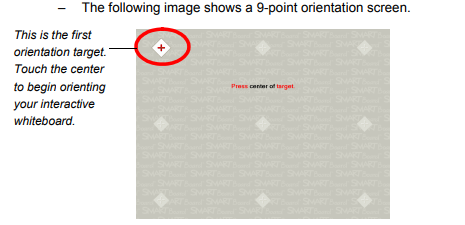
Credit: www.campusdinamo.es
Credit: iss-kb.iss.k12.nc.us
Frequently Asked Questions
Why Calibrate My Smartboard?
Calibrating ensures accurate touch response. It makes your board easy to use.
How Often Should I Calibrate?
Calibrate when the touch is off. A monthly check is a good idea.
What Tools Do I Need?
You will need the Smartboard software. A stylus or your finger works.
Can I Calibrate Without Software?
No, calibration requires the Smartboard software. It guides you through the steps.
What If Calibration Fails?
Restart the Smartboard and software. Check for any physical obstructions.
Is Calibration Difficult?
Not at all. The software makes it simple. Follow the on-screen prompts.
How Does Calibration Work?
The board learns where you touch. It maps your touch points precisely.
Conclusion
Calibrating your Smartboard is easy. Follow these steps. You will get accurate touch. Your lessons will flow smoothly. Enjoy a better interactive experience. It makes teaching more fun. Regular calibration ensures best results. Your students will thank you. Get back to engaging lessons.