
Is your Brother printer stubbornly refusing to wake up? You hit the print button, but nothing happens.
Your printer seems to be stuck in a deep slumber, and you need it to get back to work, fast. Don’t worry, you’re not alone. Many users find themselves in this frustrating situation. This guide will help you quickly diagnose why your Brother printer won’t come out of sleep mode and, more importantly, how to get it printing again.
Let’s get your printer back online!
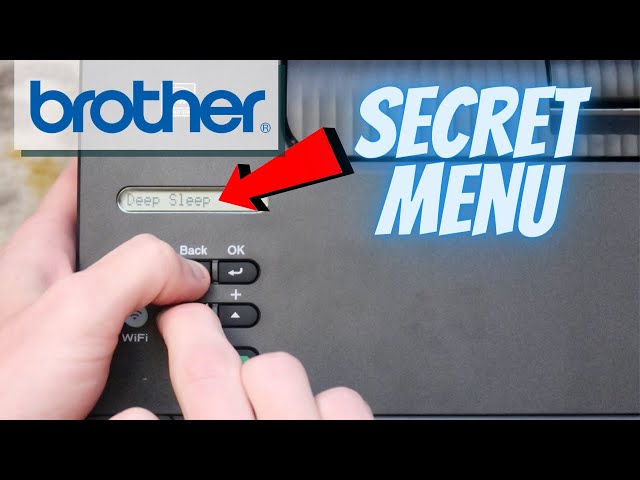
Credit: www.youtube.com
Waking Your Brother Printer
Your Brother printer might enter sleep mode. This saves energy. Sometimes it stays asleep. You need to wake it up. This section explains how. We will get your printer ready.
The Gentle Tap: Basic Wake-up
Press any button on the printer. This often wakes it. Try the power button. Sometimes it just needs a nudge. Wait a few seconds. See if the lights turn on.
Checking Connections: Power And Data
Is the power cord secure? Check both ends. Ensure it plugs in firmly. Look at the USB cable too. Is it plugged in well? A loose cable can cause issues. Try a different USB port. This helps rule out port problems.
Printer Panel Power Play
Find the printer’s control panel. Look for the power button. Press and hold it. Hold it for about ten seconds. This forces a restart. The printer should power back on. This is a simple but effective step.
Troubleshooting Deeper Sleep Issues
Sometimes, your Brother printer seems to be in a deeper sleep. It won’t wake up easily. These steps help solve stubborn sleep mode problems. We will go through a few checks. These should get your printer working again.
Restarting The Printer
Turn off your printer. Unplug it from the wall. Wait for one minute. Plug it back in. Turn the printer on. This often clears temporary glitches. It resets the printer’s internal state.
Rebooting Your Computer
Your computer controls the printer. Restart your computer. This refreshes the connection. It can resolve communication errors. A simple reboot fixes many issues. It’s a good first step.
Checking Printer Drivers
Printer drivers are essential. They tell your computer how to talk to the printer. Outdated drivers cause problems. Go to Brother’s support website. Download the latest drivers. Install them on your computer. This ensures smooth operation.
Updating Printer Firmware
Printer firmware is its internal software. Updates fix bugs. They improve performance. Check your printer’s manual. It explains how to update firmware. Visit the Brother website. Download the newest firmware. Follow the instructions carefully. This keeps your printer current.
Addressing Persistent Sleep Problems
Your Brother printer stuck in sleep mode? Don’t worry. Try a simple power cycle first. Unplug it, wait a minute, then plug it back in. This often wakes up stubborn devices.
Your Brother printer keeps sleeping. It’s frustrating. You need it awake. This section helps you fix it. We will look at deeper settings. These settings control sleep.Printer Power Settings Explained
Check your printer’s control panel. Find the power management menu. Look for sleep timer options. Set the sleep timer to the longest duration. Or disable it completely. This keeps the printer on. It will not go to sleep so fast.Computer Power Management
Your computer affects the printer. Windows has power options. Go to Control Panel. Find Power Options. Select “Change plan settings.” Click “Change advanced power settings.” Look for “Sleep.” Expand it. Set “Sleep after” to “Never.” This stops your PC from sleeping. It can wake the printer.Network Sleep Settings (if Applicable)
Some printers use network sleep. This is for Wi-Fi models. Check your router settings. Look for device sleep modes. Disable them for your printer. Your printer will stay awake. It will respond faster.
Credit: www.compandsave.com
When To Seek Further Help
Sometimes, even simple fixes don’t work. Your printer stays asleep. Don’t worry. There are more steps. You can get help. This section guides you. Find the right solution. Get your printer working again.
Consulting The Brother Manual
Your printer came with a manual. It has troubleshooting tips. Look for sections on power. It might explain sleep mode issues. The manual is a great resource. Find it online too. Brother’s website has downloads.
Brother Support Resources
Brother offers customer support. Their website has FAQs. You can find online chat. Phone support is also available. They can help diagnose problems. They know their printers well. Use these resources first.
Professional Printer Service
Still no luck? Your printer may need repair. A technician can help. They have special tools. They understand complex issues. Contact a certified Brother repair shop. This is the final step. Get your printer fixed.

Credit: support.brother.ca