
Got a tiny desk but big productivity dreams? You’re not alone.
Many of us crave the power of dual monitors, but our workspace feels more like a shoebox. Don’t worry, you don’t need to buy a new desk or sacrifice that second screen. We’ve got you covered. This guide will show you exactly how to fit two monitors on your small desk and transform your setup.
Get ready to boost your efficiency without the clutter.
Assess Your Space
Before you buy anything, take a good look. Assess your space carefully. This is the first, most important step. It ensures your setup works. It avoids future frustration. Smart planning prevents problems.
Measure Your Desk
Get your tape measure. Measure the width of your desk. Measure the depth too. Note down these numbers. These are your limits. This dictates monitor size. It controls placement options.
Identify Obstacles
Look for things in the way. Is there a monitor stand? Do you have a keyboard tray? What about other desk items? These take up valuable room. They limit your screen space. Clear clutter first.
Consider Viewing Angles
Think about where you sit. How will you see the screens? Can you tilt them easily? Adjusting angles is key. You need comfortable viewing. Avoid neck strain. Position them for your eyes.
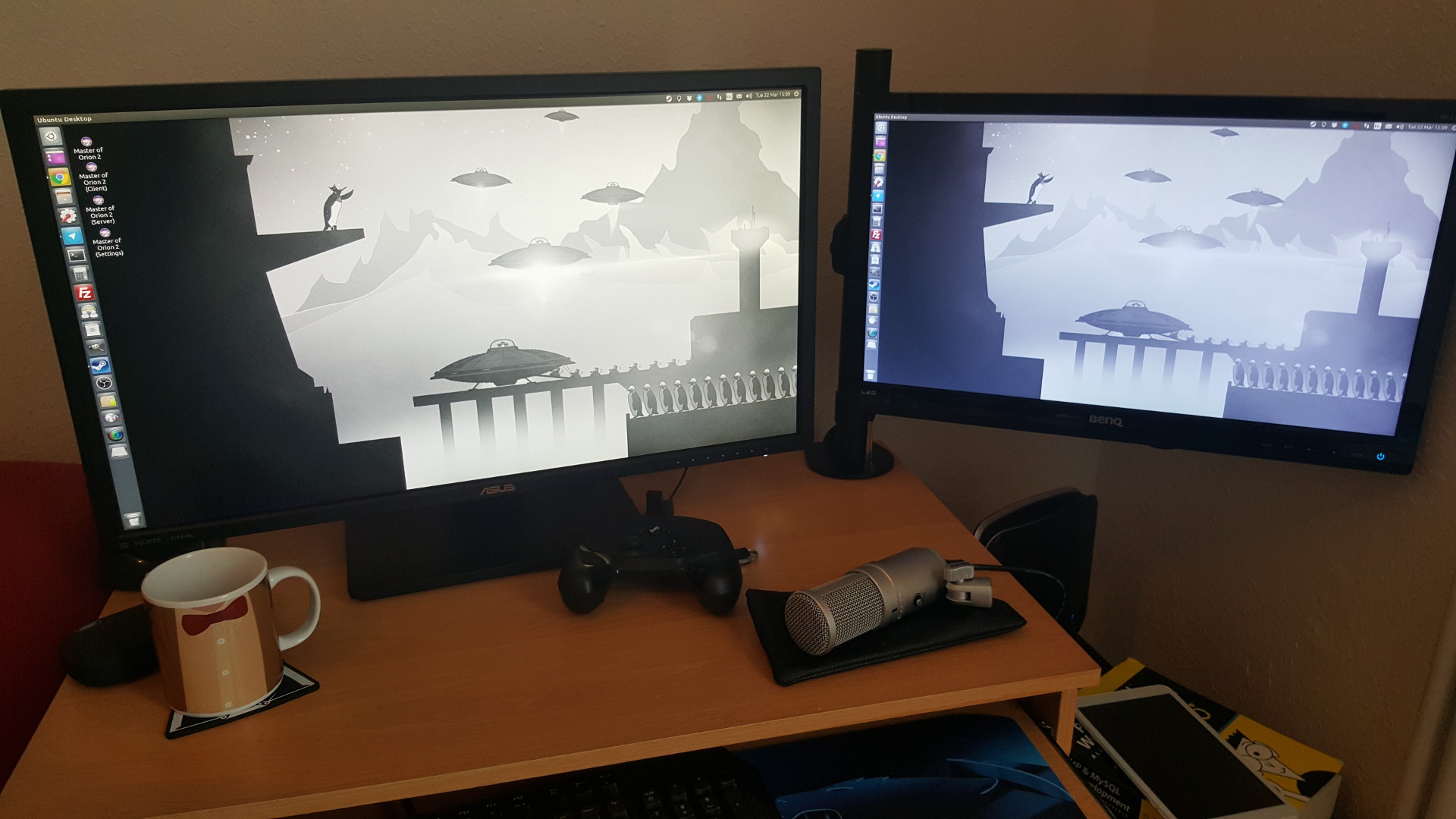
Credit: www.gamingonlinux.com
Monitor Choices
Choosing the right monitors is key. It makes fitting two screens on a small desk easier. Think about monitor design and size. Consider your workflow too. Your monitor choices impact your space.
Slim Bezel Designs
Look for monitors with slim bezels. Thin bezels make monitors look sleeker. They take up less desk space. Two slim monitors fit better together. The gap between screens is smaller. This creates a more unified display. It feels like one large screen. Slim bezels look modern. They enhance your workspace. This is a smart choice for small desks.
Smaller Screen Sizes
Smaller monitors save valuable desk space. Many compact monitors are available. Look for 22-inch or 24-inch screens. These sizes work well for productivity. They offer enough screen real estate. You can still multitask effectively. Smaller screens reduce visual clutter. They keep your desk feeling open. This is great for tight spaces. Consider the monitor’s aspect ratio. A standard 16:9 is common. Some offer 16:10 for more vertical space.
Ultrawide Vs. Dual Monitors
An ultrawide monitor is one very long screen. It can replace two separate monitors. This saves space. It offers a single, immersive display. However, ultrawides can be very deep. They might still take up desk room. Dual monitors offer more flexibility. You can position them independently. This can be better for certain tasks. For example, coding or design work. Two smaller monitors might fit better. They can be angled easily. Evaluate your primary computer use. Decide what works best for you. Both options have pros and cons.
Mounting Solutions
Small desks can still hold two monitors. Mounting solutions free up valuable desk space. Consider a dual monitor stand for your setup.
Mounting solutions are key. They free up your desk. You can fit more monitors. This makes your workspace better.Desk Clamps
Desk clamps are a great choice. They attach to your desk edge. No drilling is needed. They hold monitor arms securely. This saves valuable desk space. You can adjust monitor height. You can also adjust monitor angle.Wall Mounts
Wall mounts are another option. They attach directly to your wall. This frees up all desk surface. It gives you maximum space. Ensure your wall is strong. Mounts hold monitors securely. They offer great flexibility. You can position monitors easily.Freestanding Stands
Freestanding stands work well. They sit on your desk surface. Some stands hold two monitors. They do not need desk clamps. They offer stability. Choose a stand with a small base. This minimizes desk footprint. It keeps your workspace tidy.
Credit: www.youtube.com
Ergonomic Placement
Ergonomic placement is key. It makes your setup comfortable. Good placement prevents pain. It also boosts your productivity. You need to think about your body.
Eye Level Positioning
Place monitors at eye level. This is very important. Your eyes should look straight ahead. Avoid looking up or down. This reduces eye strain. It keeps your neck relaxed.
Minimizing Neck Strain
Your neck needs to be neutral. Do not tilt your head much. Keep your head straight. Position the monitors close. This stops you from reaching. Avoid awkward postures. Your back will thank you.
Optimizing Workflow
Arrange monitors logically. Put your main screen front. Place the second screen nearby. Accessing information is faster. Switching between tasks is easy. This makes work flow smoothly. You get more done.
Cable Management
Keep your workspace tidy. Good cable management makes a big difference. It helps you fit more on your desk.
Cable management is key. It keeps your small desk tidy. Messy cables look bad. They also get in your way. Good cable management makes your space functional. It creates a cleaner look.Cable Sleeves
Use cable sleeves. They bundle wires together. This makes one neat tube. Sleeves hide the clutter. They come in many sizes. Choose a sleeve for your needs.Clips And Ties
Cable clips are useful. They stick to your desk. They hold cables in place. Cable ties also work well. They wrap around bundles. Both options are simple. They keep cords organized.Under-desk Solutions
Go under your desk. Mount a cable tray. This hides all the wires. It keeps them off the floor. You can also use Velcro straps. They attach cables to the desk legs. This frees up surface space.
Credit: www.reddit.com
Desk Organization
Maximize your small desk with two monitors. Utilize vertical space. Mounting arms save precious surface area. This setup boosts productivity.
Desk organization is key. It makes your small desk work better. Good organization helps you find things. It keeps your workspace tidy. You can fit two monitors. Smart organization is your best tool.