
Is your laptop overheating during intense gaming sessions? You’re not alone.
That frustrating lag and the worry of damaging your precious hardware can really kill the vibe. But what if you could keep your laptop cool, even during the most demanding games? This guide is packed with simple, effective ways to lower your laptop’s temperature, ensuring smoother gameplay and a longer lifespan for your device.
Get ready to say goodbye to overheating and hello to uninterrupted gaming!
Credit: medium.com
Why Laptops Overheat During Gaming
Laptops get hot. Gaming makes them hotter. This is a common problem. Many gamers face it. Your laptop needs to stay cool. Overheating hurts performance. It can damage your laptop. Let’s explore why this happens.
Intense Processing Demands
Games are demanding. They push your CPU hard. Your GPU works overtime too. These parts create heat. More power means more heat. Your laptop works its hardest. It needs to process a lot. This is normal. But it generates significant warmth.
Inadequate Cooling Systems
Laptop cooling is limited. They are small devices. Cooling fans are tiny. Heat sinks are compact. Space is a big constraint. These systems struggle. They cannot dissipate all heat. Cooling is often not enough. It cannot keep up with demands.
Dust Buildup And Airflow Blockage
Dust is a major enemy. It collects inside your laptop. It clogs vents and fans. This stops air from moving. Airflow is essential for cooling. Blocked airflow traps heat. Your laptop cannot breathe. Dust makes cooling systems fail.
Immediate Cooling Fixes
Your laptop gets hot. Gaming makes it hotter. This section offers quick fixes. You can cool your laptop now. These steps are easy. They help your game run better.
Elevate Your Laptop
Lift your laptop off the desk. Use a stand. Blocks of wood work too. This lets air flow underneath. Cool air reaches the fans. Your laptop stays cooler.
Ensure Proper Ventilation
Clear the laptop vents. Dust blocks airflow. Use compressed air. Blow dust away. Do not cover the vents. Keep them open. Good airflow is key.
Adjust In-game Settings
Lower graphics settings. Less strain on the GPU. Reduce resolution. Turn off V-Sync. These changes help. Your laptop uses less power. It generates less heat.
Cooling Accessories
Cooling accessories offer a direct solution. They help dissipate heat effectively. Your laptop stays cooler during intense gaming. This prevents performance drops. It also extends hardware life.
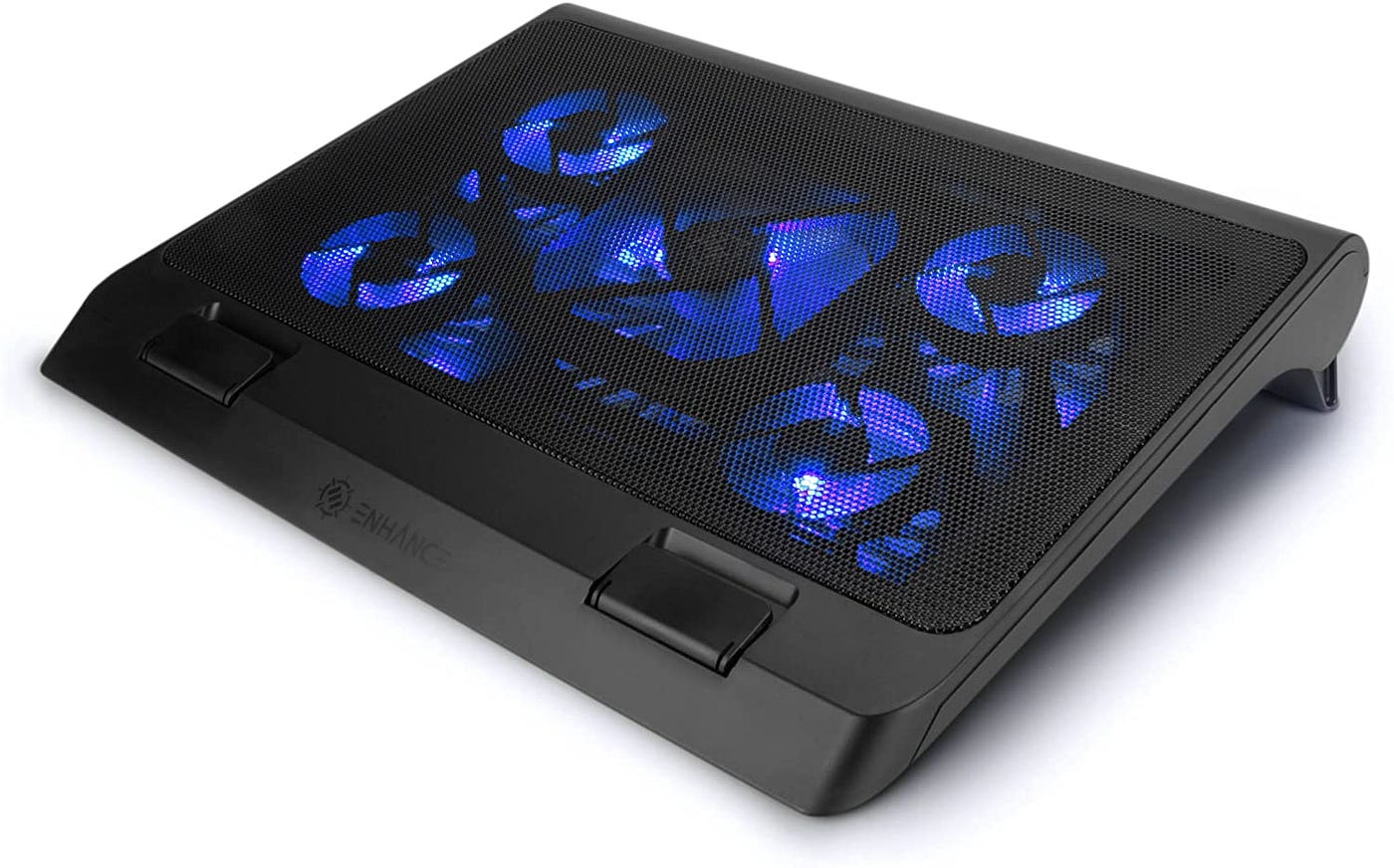
Laptop Cooling Pads
These pads sit under your laptop. They have built-in fans. These fans push cool air. Cool air goes into laptop vents. It helps lower internal temperatures. Many pads are adjustable. You can angle them for better airflow. Some pads have multiple fans. This provides broader cooling coverage. They are easy to use. Just plug them in.
External Fans
External fans offer focused cooling. You can position them precisely. Aim them at your laptop’s exhaust vents. This blows hot air away quickly. They are simple devices. Most use USB power. They are portable and lightweight. Consider their noise level. Some fans are louder than others.
Vacuum Coolers
Vacuum coolers are unique. They attach to laptop vents. They create a vacuum seal. This pulls hot air out directly. They are very effective. They remove heat efficiently. This method is quite powerful. They can significantly reduce temps. Some models are adjustable. This helps fit different laptops.
Internal Laptop Maintenance
Internal laptop maintenance is crucial for gaming performance. Dust buildup hinders airflow. Old thermal paste loses effectiveness. Proper care keeps your laptop cool. This prevents overheating during intense gaming sessions. Your laptop will run smoother. Games will not lag. You will enjoy better gameplay.
Cleaning Dust Filters
Dust is your laptop’s enemy. It clogs air vents. This traps heat inside. Open your laptop carefully. Locate the dust filters. Use compressed air. Blow the dust away. A soft brush helps too. Clean filters allow better airflow. Your laptop stays cooler. Gaming improves significantly.
Replacing Thermal Paste
Thermal paste transfers heat. It sits between the CPU and heatsink. Over time, it dries out. This reduces its cooling ability. You need to replace it. Gently remove the heatsink. Clean off old paste. Apply a small amount of new paste. Reattach the heatsink securely. New paste improves heat transfer. Your laptop runs cooler. Gaming becomes more stable.
Fan Maintenance
Laptop fans cool components. Dust can slow them down. It can even stop them. Check your laptop’s fans. Are they spinning freely? Clean them with compressed air. Ensure no obstructions exist. You might hear grinding noises. This means fan issues. Consider replacing faulty fans. Working fans are essential. They keep your laptop cool. Gaming performance stays high.
Software Solutions
Software offers smart ways to keep your laptop cool. These tools help manage heat without physical changes. You can use them to improve gaming performance. They are easy to use. Many are free. Let’s explore these options.
Fan Control Software
Your laptop fans are vital. They push hot air out. Fan control software lets you adjust fan speed. You can set fans to spin faster. This increases airflow. More air means cooler components. Some programs let you create custom fan curves. They react to your laptop’s temperature. This keeps your system running smoothly.
Undervolting Your Cpu/gpu
Undervolting reduces power to your processor. It lowers voltage. Less voltage means less heat. Your CPU or GPU still performs well. You get lower temperatures. This is great for gaming. It prevents thermal throttling. Throttling slows your game. Undervolting helps maintain speed. Be careful when undervolting. Start with small changes.
Monitoring Temperatures
Knowing your laptop’s temperature is key. Monitoring software shows real-time data. You see CPU and GPU temperatures. You can spot overheating issues early. If temps get too high, you know why. Adjust settings or use other methods. Monitoring helps you understand your laptop’s needs. It guides your cooling efforts.
Environmental Factors
Your gaming environment matters. It directly impacts laptop performance. High temperatures hurt your PC. Consider external conditions. These affect your laptop’s cooling. Small changes make big differences. Optimize your surroundings for better gaming.
Room Temperature
Keep your room cool. A warm room heats your laptop. Use air conditioning. A fan helps too. Open windows when it’s cool. Avoid direct sunlight. Sunlight adds extra heat. A cooler room means a cooler laptop. Your laptop will thank you.
Surface Stability
Place your laptop on a hard surface. Avoid soft surfaces. Beds and carpets block vents. This traps heat inside. Use a desk or a table. A laptop stand is great. It lifts the laptop. This allows better airflow. Stable surfaces prevent overheating.
Long-term Gaming Habits
Long-term gaming habits are crucial. They protect your laptop. They ensure smooth gameplay. Consistent care pays off. It prevents overheating issues.
Take Gaming Breaks
Gaming for hours strains your laptop. It builds up heat. Take short breaks often. Step away from the screen. Let your laptop cool down. This simple habit helps a lot. Your components will thank you.
Avoid Gaming On Soft Surfaces
Soft surfaces block airflow. Blankets and beds are bad. They trap heat underneath. This makes your laptop hotter. Always use a hard, flat surface. A desk is ideal. Better airflow means less heat. Your laptop stays cooler.
Regular Maintenance Schedule
Keep your laptop clean. Dust clogs vents and fans. This reduces cooling efficiency. Clean fans and vents regularly. Use compressed air. A schedule keeps it simple. Check your laptop monthly. This prevents big problems. Your gaming experience improves.

Credit: www.youtube.com
Credit: www.reddit.com
Frequently Asked Questions
Why Does My Laptop Get Hot When Gaming?
Gaming pushes your laptop’s components hard. The CPU and GPU work at full power. This generates a lot of heat.
How Can I Cool My Laptop While Gaming?
Ensure good airflow around your laptop. Use a cooling pad for extra support. Close unnecessary background programs too.
Should I Use A Cooling Pad For Gaming?
Yes, cooling pads help a lot. They provide extra fans. This pushes cooler air onto your laptop.
Is It Bad To Game On A Hot Laptop?
Gaming on a hot laptop is risky. It can damage internal parts. Performance may also suffer greatly.
How Often Should I Clean My Laptop Fans?
Clean your laptop fans regularly. Dust buildup blocks airflow. Aim for cleaning every few months.
Can I Overclock My Laptop For Gaming?
Overclocking increases performance. It also creates much more heat. Be cautious if you overclock.
What Is A Good Laptop Temperature For Gaming?
Ideal temperatures vary slightly. Below 85 degrees Celsius is good. Temperatures above 95 degrees are concerning.
Conclusion
Keep your laptop cool. Better cooling means better gaming. Clean vents regularly. Use a cooling pad. Elevate your laptop for airflow. These simple steps help a lot. Enjoy smoother gameplay. Protect your hardware too. Happy gaming, everyone.