
Is your printer acting up, or do you just need to save some energy? Shutting down your printer might seem simple, but doing it the right way can prevent potential problems down the road.
You want to make sure your printer is ready to go the next time you need it, without any glitches. This guide will walk you through the easiest and safest ways to power down your printer, ensuring it stays in top condition.
Let’s get your printer turned off correctly, so you can get back to your important tasks.
Why Shut Down Your Printer?
Shutting down your printer saves energy. It also prevents potential damage. Learn the simple steps to properly turn off your printer. This easy process protects your device.
Your printer works hard. It deserves a break. Shutting it down saves power. It also keeps it in good shape. Think of it like resting your computer. Regular rest helps machines last longer.Conserve Energy
Printers use electricity. Even when idle, they draw power. Turning it off stops this drain. You will see lower energy bills. It is a simple, smart choice. Save money. Help the planet.Extend Printer Lifespan
Components wear out with use. Constant power can stress parts. Shutting down lets components cool. This reduces wear and tear. Your printer will serve you longer. It is preventative care.Prevent Print Errors
Sometimes printers glitch. Software can hang. A restart clears these issues. It resets the printer. This stops unexpected print problems. You get fewer paper jams. Prints come out correctly.Ensure Software Updates
Printers have software. This software needs updates. Shutting down allows updates. They install properly. This keeps your printer secure. It also improves performance. Updates fix bugs.The Simple Shutdown Method
Shutting down your printer is easy. First, turn off the printer. Then, unplug its power cord from the wall. This simple method saves energy.
Shutting down your printer is easy. You do not need special skills. This method is for most printers. It is the most common way.Locate The Power Button
Find the printer’s power button. It is usually on the front. Sometimes it is on the top. Look for a circle with a line. This is the universal power symbol.Press And Hold The Button
Press the power button. Hold it down. You will see lights turn off. The printer will go quiet. This means it is shutting down.Unplug The Power Cord
For extra safety, unplug it. Find the power cord. It plugs into the wall. Pull the cord from the outlet. This completely cuts power. This is a good habit. It saves energy too.When To Power Off Completely
Here’s an engaging section for your blog post:Sometimes, your printer needs more than just a quick nap. Powering off completely offers a fresh start. It clears out temporary glitches. It conserves energy. This section explores specific times when a full shutdown is best.
Long Periods Of Unuse
Your printer sits idle for days. Weeks perhaps. A full power-off saves electricity. It reduces wear on components. Think of it as a deep sleep for your printer. It’s good practice for infrequent users.
Troubleshooting Printer Issues
Printer acting strange? Not printing correctly? A complete power cycle can fix many problems. Unplug the power cord. Wait a full minute. Then plug it back in. This resets the printer’s internal memory. It often resolves minor errors. It’s a simple first step.
Performing System Updates
Sometimes, printer software needs updates. Your computer might need updates too. Powering off the printer ensures updates install smoothly. It prevents interruptions. This avoids potential conflicts. A clean slate helps. Updates improve performance.
Moving Or Relocating The Printer
You are moving the printer. To a new room. Or a new office. Always power it off completely first. Disconnect all cables. This prevents damage during the move. It ensures a safe transition. Safety first for your equipment.
During Power Surges Or Outages
A power surge is dangerous. A power outage is disruptive. Unplug your printer during these events. A complete shutdown protects its delicate parts. It prevents electrical damage. Keep it safe from fluctuations. Wait for stable power.
Credit: help.robo3d.com
Troubleshooting Shutdown Issues
Sometimes printers refuse to power down. This can be frustrating. Don’t worry. We can fix this. Let’s explore common shutdown problems. We will find solutions.
Checking Power Connections
First, check the power cord. Is it plugged in firmly? Try a different outlet. Sometimes the outlet is the issue. Ensure the cord is not damaged. A frayed cord needs replacement. Safety first.
Restarting The Printer
A simple restart often works. Turn the printer off. Wait a full minute. Turn it back on. Then try shutting it down again. This clears temporary glitches. It’s like a quick reboot.
Updating Printer Software
Outdated software causes problems. Check for printer driver updates. Visit the manufacturer’s website. Download and install the latest version. This can fix many issues. Keep your printer current.
Using The Control Panel
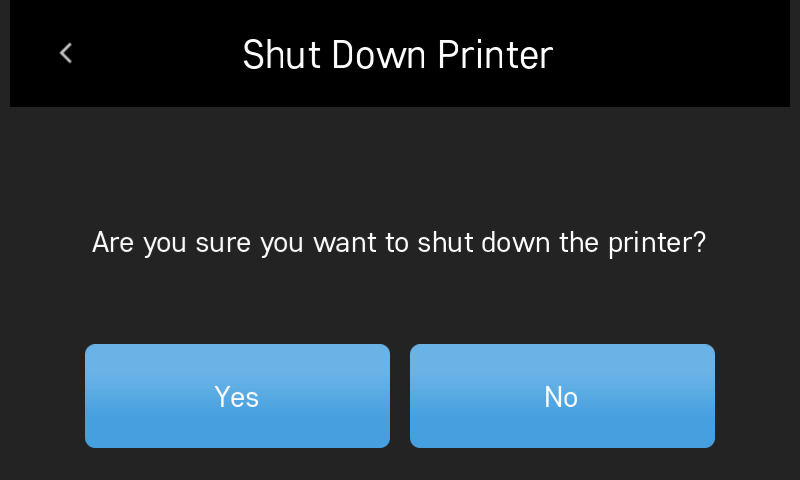
Try shutting down from the printer’s screen. Navigate the menu. Find the power option. Select “Shut Down” or “Power Off.” This bypasses computer commands. It directly controls the printer.
Disconnecting From The Computer
Sometimes the computer interferes. Disconnect the USB cable. Or stop the Wi-Fi connection. Then try shutting down the printer. If it works, the computer is the cause. Reconnect slowly to find the issue.
Printer Maintenance Tips
Properly shutting down your printer helps it last longer. Always turn off your printer using its power button. This prevents internal damage.
Keeping your printer in top shape prevents many problems. Regular care saves you time. It also saves you money. Good maintenance ensures smooth printing. Let’s explore some key tips.Clean Your Printer Regularly
Dust is a printer’s enemy. It clogs small parts. Use a soft, dry cloth. Gently wipe the exterior. Open the printer cover. Remove any loose paper bits. Clean the paper path too. A clean printer works better.Check Ink And Toner Levels
Low ink causes faded prints. Toner issues create streaks. Always monitor your levels. Replace cartridges before they run dry. This avoids printing interruptions. Keep spare cartridges handy.Update Printer Drivers
Drivers are printer software. They help your computer talk. Outdated drivers cause errors. Visit the manufacturer’s website. Download the latest drivers. Install them for best performance. Your printer will thank you.Run Printer Self-tests
Most printers have a self-test. This checks internal components. It prints a test page. This page shows print quality. It identifies potential issues. Run this test periodically. It helps catch problems early.Properly Shut Down Your Printer
Turning off is not enough. Always follow the correct shutdown. This protects the print heads. It also preserves internal parts. This simple step matters greatly. It extends your printer’s life.
Credit: support.hp.com

Credit: www.youtube.com
Frequently Asked Questions
Why Turn Off My Printer?
Turning off your printer saves energy. It also prevents wear and tear. This simple step can extend your printer’s life.
How To Safely Power Down A Printer?
Find the power button. Usually, it’s on the front or top. Press and hold it until the lights go out. Wait a moment before unplugging.
Can I Just Unplug My Printer?
It’s not the best way. Unplugging without shutting down can cause issues. Proper shutdown saves settings. It protects internal components.
Is There A Specific Order To Shut Down?
Generally, no. Just turn off the printer itself. Your computer can stay on. Then, unplug the printer if needed.
What If My Printer Won’t Turn Off?
Try unplugging it directly. Wait a minute, then plug it back in. If the problem continues, check the manual. You might need to call support.
Should I Turn Off Printer After Each Use?
Yes, it is a good idea. This conserves electricity. It also ensures the printer is ready for next time.
Does Shutting Down Affect Printer Settings?
No, it should not. A proper shutdown saves your preferences. Your settings remain intact. They will be there when you next power on.
Conclusion
Shutting down your printer is simple. Follow these steps. Save power. Protect your device. Unplug it when not in use. This ensures longevity. Your printer will last longer. It’s an easy habit. Make it a routine. You’ve got this.