
Your IP camera is acting up, and you can’t find that tiny reset button anywhere. Frustrating, right?
Maybe the button is damaged, or perhaps your camera model just doesn’t have one. Whatever the reason, you need a way to get your camera back to its factory settings. Don’t worry, you’re not stuck with a useless device. In this guide, we’ll show you exactly how to reset your IP camera, even when that elusive reset button is nowhere to be found.
Keep reading to unlock the simple solutions you’ve been looking for.
Credit: impraygas.com
Locating The Reset Button
Finding the reset button is the first step. It’s often small. Sometimes it’s hard to see. This guide helps you locate it. We will explore common spots. We will also look for hidden ones.
Common Button Placements
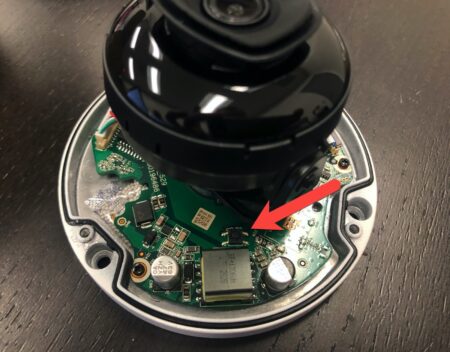
Many cameras hide the button. Look for small holes. These holes are usually round. A paperclip often fits inside. Check the camera’s casing. The bottom is a frequent place. The back is another possibility. Sometimes it’s on the side. Inspect the camera carefully.
Hidden Reset Mechanisms
Some cameras use different methods. You might need to remove a cover. This reveals the internal reset. Be gentle when removing parts. Some buttons are recessed. They sit flush with the surface. You may need a sharp object. A pin works well. Always check your camera’s manual. The manual is your best friend.
Software Reset Options
Software reset options offer a convenient way to restore your IP camera. You do not need physical access to the device. This method works well when the reset button is hidden or broken. Let’s explore these digital solutions.
Accessing The Camera’s Web Interface
Most IP cameras have a web interface. You can access this through your browser. First, find your camera’s IP address. Then, type this address into your browser’s address bar. A login screen will appear. Enter your camera’s username and password. Look for a system or maintenance menu. Within this menu, you will find a reset option. Select the factory reset choice. Confirm your decision. The camera will then restart with default settings.
Using Manufacturer’s Software
Camera manufacturers often provide software. This software helps manage your devices. Download the correct software from their website. Install it on your computer. Connect your camera to your network. Run the software and find your camera. The software will list available devices. Select your camera from the list. Look for a device settings or management option. A reset function is usually available here. Click the reset button. Follow any on-screen prompts. Your camera will reset.
Mobile App Reset Features
Many modern IP cameras use mobile apps. Download the official app for your camera. Install the app on your smartphone or tablet. Create an account or log in. Add your camera to the app. This usually involves scanning a QR code. Once added, tap on your camera’s icon. Navigate to the camera’s settings. Find the system or advanced settings. A reset option should be present. Choose the factory reset. Confirm the action. The app will send the reset command. Your camera will revert to defaults.
Network-based Reset
Sometimes your IP camera needs a reset. A physical reset button is not always present. You can reset it over the network. This method is a network-based reset. It uses your computer. It communicates with the camera. You do not need to touch the camera directly. This is useful for hard-to-reach cameras. It offers a convenient solution. Let’s explore this process.
Finding The Camera’s Ip Address
First, you need the camera’s IP address. This is its network location. You cannot reset it without this address. How do you find it? Your router often lists connected devices. Check your router’s admin page. Look for a list of DHCP clients. The camera should appear there. Its IP address will be listed. Write it down carefully.
Using Network Scanning Tools
Network scanning tools help locate devices. These tools search your network. They find all active IP addresses. Popular tools include Advanced IP Scanner. Fing is another good option. Download and install a scanner. Run the tool on your computer. It will display a list of devices. Look for your camera’s name. The IP address will be shown. This is a quick way to find it.
Command-line Interface (cli) Methods
You can use command lines. This is for more advanced users. The ‘ping’ command is useful. Open Command Prompt on Windows. Use ‘ping [camera’s MAC address]’. This can reveal the IP. On macOS or Linux, use ‘arp -a’. This command shows the ARP table. It lists IP and MAC addresses. Find your camera’s MAC address. Its IP address will be next to it. Some cameras have specific CLI commands. Check your camera’s manual. It may provide reset commands.

Credit: www.youtube.com
Troubleshooting And Alternatives
Sometimes, your IP camera needs a reset. You might lose the reset button. Don’t worry. This section covers troubleshooting. It offers alternatives too.
When Software Fails
Your camera software might freeze. You cannot access reset options. Try power cycling the camera. Unplug its power adapter. Wait for thirty seconds. Plug it back in. This can clear temporary glitches. It might restore software access. Check your camera’s manual. It may list software reset steps. Some cameras have a web interface. You can reset it there. Look for a “Factory Reset” option. This is often in system settings.
Contacting Manufacturer Support
Still no luck? Reach out to the maker. They offer expert help. Find their contact information. It is on their website. It is in the user manual. Explain your problem clearly. They know their cameras best. They can guide you through steps. They might have special tools. They can tell you if it’s broken. This is a reliable option.
Considering A Full Reconfiguration
A full reset might be needed. This is a last resort. It erases all settings. You will lose custom configurations. You must set it up again. This is like buying it new. You will need the setup guide. Reconnect it to your network. Set a new password. You might need to reinstall software. This process takes time. It ensures a fresh start. It fixes persistent issues.

Credit: www.burtonmotion.com
Frequently Asked Questions
Can I Reset An Ip Camera Without A Button?
Yes, it’s possible. Some cameras have software reset options. You might need to access its web interface.
How To Factory Reset Ip Camera Remotely?
Access your camera’s settings via its app or web browser. Look for a “factory reset” or “restore default” option. Confirm the action to reset.
What If My Ip Camera Has No Reset Button?
Check your camera’s manual for alternative methods. Some use a specific sequence of power cycles. Others might require a special tool.
Can I Reset An Ip Camera Through Its App?
Many modern IP cameras offer app-based resets. Open the camera’s mobile application. Navigate to device settings and find the reset function.
Is There A Way To Reset Ip Camera Without Pc?
Yes, often. Use the camera’s dedicated mobile app. This is a common method for many brands.
How To Hard Reset An Ip Camera?
A hard reset usually means a physical reset. If no button exists, try unplugging power for a minute. Then plug it back in.
What To Do If Ip Camera Is Locked?
Try a factory reset. This will revert all settings to default. You may need to set it up again.
Conclusion
Resetting your IP camera is possible. Even without a button. Explore your camera’s software settings. Many models offer reset options there. Check your camera’s manual online. It often has helpful guides. You can regain control of your camera. Simple steps can solve problems.
Don’t give up on your device. A solution likely exists.