
Need to make a duplicate of a document? You’re in the right place.
Copying on a printer is a common task, but it can be confusing if you don’t know the steps. Don’t worry, we’ll make it simple. This guide will walk you through exactly how to copy on your printer, step-by-step. You’ll be making perfect copies in no time.
Get ready to master this essential skill for your home or office.
Credit: support.brother.com
Printer Basics For Copying
Copying documents is simple. Your printer can do it easily. Understand a few basics first. This guide makes it clear. Let’s learn how to copy.
Identifying Your Printer Type
Printers come in different kinds. Most modern printers are all-in-one. They print, scan, and copy. Some older printers only print. Look at your printer’s features. It probably has a scanner. This is key for copying.
Locating The Scanner Bed
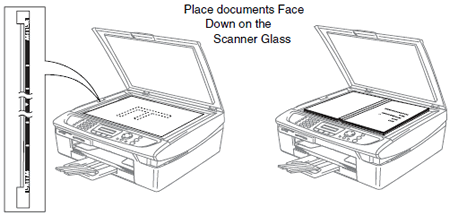
The scanner bed is important. It is usually a flat glass surface. You lift a lid to find it. Place your document face down. Align it with the guide marks. This ensures a good copy. Close the lid gently.
Understanding Control Panel Buttons
Your printer has a control panel. Buttons let you control functions. Look for a “Copy” button. There might be “Start” or “Black” buttons. You might see a number pad. Use it to set the number of copies. Some printers have display screens. They guide you through steps. Refer to your printer’s manual. It explains all buttons clearly.

Credit: www.youtube.com
Preparing Your Document
Get your papers ready. Ensure they are clean and flat. This helps the printer scan them perfectly.
Initiating The Copy Process
Ready to copy documents? Place your original on the scanner. Select “copy” on the printer. Press the start button. Your copy is now ready.
Credit: support.hp.com
Advanced Copy Settings
Printers offer more than basic copying. Advanced settings let you fine-tune your copies. You gain control over the final output. Explore these features. They improve your document quality.
Adjusting Darkness/lightness
Is your copy too faint? Or too dark? Most printers let you adjust this. Look for a “Darkness” or “Density” setting. You can make it lighter. You can make it darker. Experiment to find the best look. This ensures clear text. It makes images pop.
Resizing Documents
Need a smaller or larger copy? Many printers can resize. You can enlarge a document. You can shrink it too. Find the “Resize” or “Scaling” option. You can set a percentage. Some printers have presets. Like “200% enlarge.” Or “50% reduce.” This is useful for handouts. It helps with posters.
Making Double-sided Copies
Save paper with double-sided copying. This is also called duplexing. Your printer copies on both sides. It flips the paper automatically. Some printers do this manually. You may need to reinsert pages. Check your printer’s manual. Double-sided copies save resources. They make documents thinner.
Copying Multiple Pages To One Sheet
Want to save even more paper? Copy multiple pages onto one sheet. This is called N-up copying. You can put two pages side-by-side. Four pages can fit on one sheet. Find the “Layout” or “N-up” setting. Select the number of pages. This is great for drafts. It works for handouts too. You reduce paper use. You make documents compact.
Troubleshooting Common Issues
Printer not copying? Check paper jams first. Ensure the lid is closed properly. Try restarting the printer. These simple steps solve many copying problems.
Printer Maintenance For Copying
Copying documents is simple. Ensure your printer has enough paper. Select the copy function on your printer’s screen. Your printer is ready to copy.
Good copies start with a healthy printer. Proper maintenance ensures clear results. It prevents smudges and streaks. Regular checks are vital. They save you time and frustration.Cleaning The Scanner Glass
Dirt on the glass causes problems. Smudges appear on copies. Streaks ruin your documents. Use a soft, lint-free cloth. A little glass cleaner helps. Wipe the glass gently. Clean both sides if possible. Do this before each copy job. A clean scanner bed is key.Checking Ink Or Toner Levels
Low ink makes copies faint. Toner is essential for laser printers. Check your printer’s display. Most printers show ink levels. Low levels mean new cartridges. Replace them promptly. Don’t wait for blank pages. Consistent ink ensures good copies.Updating Printer Drivers
Printer drivers are software. They help your computer talk to the printer. Old drivers cause errors. They can affect copy quality. Visit the printer manufacturer’s website. Download the latest drivers. Install them carefully. This step is often overlooked. Updated drivers improve performance.Frequently Asked Questions
What Does “copying” Mean For Printers?
Copying means making a duplicate of a document. Your printer scans the original. Then, it prints a new, identical copy.
How Do I Make A Copy Using My Printer?
Place your original document face down. Use the printer’s control panel. Select the “copy” function. Then, press start.
Can I Copy In Color?
Yes, most modern printers can copy in color. Check your printer’s settings. Select the color option before copying.
How To Copy Double-sided Documents?
Some printers have an automatic duplexer. Others require manual flipping. Follow your printer’s instructions carefully.
What If My Copy Quality Is Poor?
Check your ink or toner levels. Clean the printer’s scanner glass. Ensure the original document is clear.
Can I Copy Multiple Pages At Once?
Yes, you can copy many pages. Use the document feeder if available. Or, scan each page individually.
Where Do I Find The Copy Button?
The copy button is usually on the printer’s control panel. It often has a “copy” icon. Look for it near the screen.
Conclusion
Copying documents is simple. Your printer can do it. Follow these steps. You will succeed. Enjoy your new copies. Printing made easy. Try it yourself. It works well.