
Is your Adobe PDF printer suddenly refusing to cooperate? You’re trying to save a document as a PDF, but nothing happens, or you get an error message.
It’s incredibly frustrating when a tool you rely on just stops working. Don’t worry, you’re not alone, and this problem is usually fixable. We’re going to walk you through the common reasons why your Adobe PDF printer might not be working and give you simple, step-by-step solutions to get it back up and running.
Keep reading to discover how to solve this annoying issue.
Credit: www.autodesk.com
Common Adobe Pdf Printer Issues
Many things can stop your Adobe PDF printer. These are common problems. We will look at them now. Understanding these helps fix it. Let’s dive in.
Printer Offline Or Paused
Your printer might be offline. It might also be paused. Check your printer status. Make sure it is online. Clear any paused print jobs. This often fixes the issue.
Corrupted Pdf Printer Driver
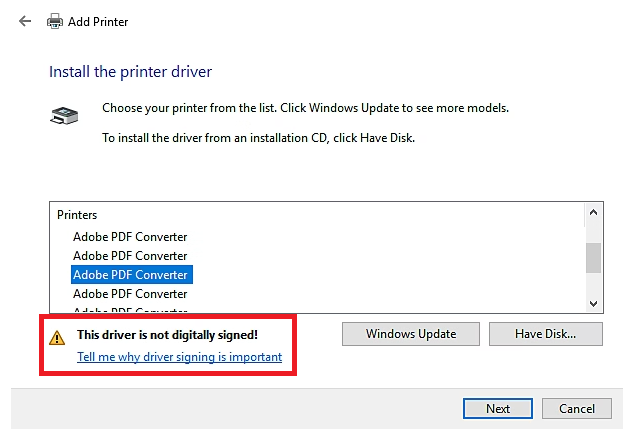
The PDF printer driver can get corrupt. This stops it from working. You need to reinstall the driver. Go to Adobe’s website. Download the latest driver. Install it carefully. This usually solves the problem.
Conflicting Software
Other programs can interfere. They might conflict with the PDF printer. Try closing other applications. See if the PDF printer works now. If it does, find the conflict. Remove or update the bad software.
Windows Updates Causing Problems
Windows updates can cause issues. Sometimes, they break existing features. Your PDF printer might stop working. Check for recent Windows updates. Look for known issues. You may need to roll back updates. Or wait for a new fix.
Troubleshooting Steps
Adobe PDF printer not working? Don’t worry. We have solutions. These troubleshooting steps can fix it. Let’s get your PDF printer working again.
Restart Your Computer
A simple restart often helps. It clears temporary glitches. Turn off your computer completely. Wait a few seconds. Turn it back on. Try printing to PDF again.
Check Printer Status
Is your PDF printer ready? Look at your printer settings. Ensure it is not offline. Check the printer queue. Clear any stuck print jobs. Restart the print spooler service.
Update Or Reinstall Pdf Printer Driver
The driver might be old. An outdated driver causes issues. Go to Adobe’s website. Download the latest driver. Install it carefully. Sometimes reinstalling helps too. Remove the old driver first.
Run The Adobe Acrobat Cleaner Tool
Corrupted files can be a problem. Adobe offers a cleaner tool. Download and run this tool. It removes leftover files. These files might cause errors. Install Acrobat again afterward.
Check For Windows Updates
Windows updates fix many bugs. Ensure your system is current. Go to Windows Settings. Check for available updates. Install any pending updates. Restart your computer after updates.
Disable Antivirus Temporarily
Your antivirus might block the printer. It may see it as a threat. Turn off your antivirus briefly. Try printing to PDF now. Remember to turn your antivirus back on. It protects your computer.
Reset Adobe Pdf Printer Settings
Settings can sometimes get mixed up. Resetting them can help. Find the Adobe PDF printer properties. Look for a reset option. Apply the changes. Test the printer once more.
Advanced Solutions
Experiencing issues with Adobe PDF Printer? We offer practical fixes. Troubleshoot common problems easily. Get your printing working again.
When basic fixes fail, try these advanced steps. They tackle deeper issues. Let’s dive in.Repair Adobe Acrobat Installation
Sometimes, the Acrobat installation is corrupt. A repair fixes broken files. Go to your Control Panel. Find “Programs and Features.” Select Adobe Acrobat. Click “Change.” Choose “Repair.” Follow on-screen prompts. Restart your computer. Test the PDF printer again.Check Services For Adobe Pdf Printer
The PDF printer relies on Windows services. These services must be running. Press Windows key + R. Type “services.msc.” Press Enter. Look for “Adobe PDF Converter.” Check its “Status.” It should say “Running.” If not, right-click it. Select “Start.” If it is running, try restarting it.Use Another Pdf Printer (alternative)
Adobe PDF printer is not your only choice. Many free alternatives exist. These are great workarounds. Download a free PDF printer. Install it. Then, print to this new printer. It bypasses the Adobe problem. This gets your documents done.Contact Adobe Support
Still no luck? Adobe support can help. They know Acrobat best. Visit the Adobe website. Find their support section. Look for contact options. Chat or phone support is available. Explain your problem clearly. They offer expert solutions.
Credit: helpx.adobe.com

Credit: helpx.adobe.com
Frequently Asked Questions
Why Is Adobe Pdf Printer Not Working?
Your Adobe PDF printer might not work due to driver issues. Corrupted software or outdated drivers can cause this problem. It’s also possible that another program is interfering.
How To Fix Adobe Pdf Printer Offline?
Restart your printer spooler service. Check your printer’s status in Devices and Printers. Ensure the Adobe PDF printer is set as default.
What To Do If Adobe Pdf Printer Is Missing?
Reinstall Adobe Acrobat or Reader. This usually restores the missing printer. You can also try adding it manually via printer settings.
How To Update Adobe Pdf Printer Driver?
Go to Adobe’s website for updates. Download the latest driver for your version. Install the new driver, then restart your computer.
Can I Use A Different Pdf Printer?
Yes, many alternatives exist. Free options like Microsoft Print to PDF work well. Paid software offers more advanced features.
How To Troubleshoot Adobe Pdf Printer Errors?
Check Adobe’s official support pages. Look for common error codes and solutions. Run the Adobe troubleshooter if available.
Why Won’t Adobe Pdf Print Documents?
A document’s complex formatting can cause issues. Try printing a simple text file first. Ensure your Adobe software is up to date.
Conclusion
Don’t let a broken Adobe PDF printer stop you. Try these simple fixes. Restart your computer first. Check your printer settings next. Update Adobe software regularly. Sometimes, reinstalling helps too. These steps usually solve the problem. Get your PDF printing working again.
Enjoy creating PDFs with ease.