
Is your Laview camera suddenly offline, or did you just upgrade your home Wi-Fi? Don’t worry, getting your Laview camera back online is simpler than you think.
You’ve invested in your security, and we’re here to help you reconnect it without any hassle. This guide will walk you through each step, making sure your camera is talking to your new network in no time. Let’s get your eyes back on your home.
Checking Your Wifi Network
Before you connect your Laview camera, check your Wi-Fi network. This step is crucial for a smooth setup. A strong, stable connection is key. Your camera needs this to function correctly. Many connection issues stem from Wi-Fi problems. Let’s ensure your network is ready.
Network Name (ssid)
Find your Wi-Fi network name. It is also called the SSID. Your camera needs this exact name. Double-check for typos. Even small errors cause problems. It must match precisely. Your router broadcasts this name.
Password Accuracy
Enter your Wi-Fi password carefully. Passwords are case-sensitive. Uppercase and lowercase letters matter. Numbers and symbols are important too. Make sure every character is correct. A wrong password prevents connection. Try typing it slowly. Confirm each character is right.
2.4ghz Vs. 5ghz Bands
Most Laview cameras use 2.4GHz. Some routers offer two bands. One is 2.4GHz. The other is 5GHz. Your camera likely prefers 2.4GHz. It has better range. Ensure you select the 2.4GHz band. Check your router settings. Choose the 2.4GHz network name. This is a common setup point.
Router Proximity
Place your camera near the router. Signal strength is important. A weak signal causes drops. Move the camera closer initially. Once connected, test range. You can move it later. A strong signal ensures stability. This helps with initial pairing. Don’t start too far away.
Preparing Your Laview Camera
Get your Laview camera ready. This step is important. It ensures a smooth connection. Proper preparation makes setup easy. Follow these simple steps.
Powering Up The Camera
Plug in your Laview camera. Connect the power adapter. Wait for the camera to start. You will see a light. This indicates it is on.
Resetting The Camera (if Needed)
Sometimes, a reset is necessary. This clears old settings. It prepares the camera for new Wi-Fi. A reset helps with connection issues. Do this if setup fails.
Locating The Reset Button
Find the reset button. It is usually small. Look on the camera body. Sometimes it is on the back. It might be under a cover. A pin or paperclip helps.
Using The Laview App
Connecting your Laview camera to new Wi-Fi is simple. Open the Laview app. Follow the on-screen steps to link your device. Your camera will be online in no time.
The Laview app is your central hub. It controls your camera. You will use it to connect. Let’s get started.Downloading The App
First, get the app. Go to your phone’s app store. Search for “Laview Security.” Download the official app. Install it on your device.Creating Or Logging Into Your Account
Open the Laview app. Do you have an account? Log in now. New user? Create an account. Follow the on-screen prompts. You will need an email. Set a strong password.Adding A New Device
Account ready? Let’s add your camera. Tap the “+” icon. This means add device. Select your camera model. The app will guide you. Follow each step carefully. You are almost there.
Credit: laviewsmart.com
Connecting To The New Wifi
Changing your Wi-Fi? Connect your Laview camera easily. Follow these simple steps. Get your camera back online quickly.
Connecting your Laview camera to a new Wi-Fi network is straightforward. This section guides you through the process. You will link your camera to your home internet. Follow these simple steps.Selecting Your Network
Open your Laview app. Go to the camera settings. Find the Wi-Fi setup option. A list of networks appears. Choose your new Wi-Fi name. This is your network’s SSID.Entering The Wifi Password
Type your Wi-Fi password carefully. Passwords are case-sensitive. Double-check for errors. This is essential for connection. Press “Connect” or “Next.”Camera Pairing Process
Your camera now searches. It looks for your Wi-Fi signal. The camera might beep or flash. This indicates it is trying. Wait for the camera to connect.Confirmation Of Connection
The app will show a success message. Your camera light may turn solid green. This means it is online. You can now view your camera feed. Your camera is connected.Troubleshooting Common Issues
Connecting your Laview camera can sometimes hit a snag. Don’t worry. This section helps you fix common problems. We will guide you through simple solutions.
Incorrect Password Entries
Did you type the Wi-Fi password right? It is case-sensitive. Check for typos. Ensure caps lock is off. Try entering it again. A simple mistake can cause trouble. Double-check your network name too. It must match exactly.
Weak Wifi Signal
Is the camera too far away? Move it closer to your router. Obstacles block signals. Walls and furniture interfere. Try repositioning the camera. A stronger signal helps connection. Consider a Wi-Fi extender. It boosts your network range.
App Not Detecting Camera
Is your phone on the right network? Connect your phone to your 2.4GHz Wi-Fi. The Laview app needs this band. Restart the Laview app. Close it completely. Open it again. Check your phone’s Wi-Fi settings. Ensure it is connected.
Camera Not Going Into Pairing Mode
Did you press the reset button correctly? Hold it for about 10 seconds. You should hear a beep. Or see an indicator light. Refer to your camera manual. It shows the exact process. Repeat the pairing steps. Patience is key here. The camera needs to signal readiness.
Factory Resetting The Camera
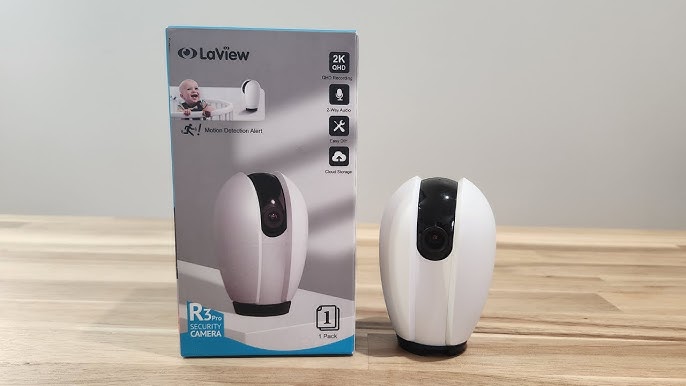
This is a last resort. It erases all settings. Find the reset button. It is usually a small pinhole. Use a paperclip to press it. Hold for 10-15 seconds. Wait for the camera to reboot. Then, try the setup again. It starts fresh. This often solves persistent issues.
Credit: www.youtube.com
Securing Your Connection
Protecting your Laview camera is vital. A secure connection keeps your home safe. We will guide you through this process. Follow these steps carefully.
Changing Default Passwords
Your camera has a default password. This is not secure. Change it immediately. Use a strong, unique password. This makes it harder to hack.
Enabling Two-factor Authentication
Two-factor authentication adds a layer. It requires two proofs of identity. This is an extra security step. It protects your account effectively.
Firmware Updates
Keep your camera’s firmware updated. Updates fix security flaws. They improve camera performance too. Check for updates regularly. Install them promptly for safety.

Credit: gkdk.se
Frequently Asked Questions
Why Is My Laview Camera Not Connecting To Wi-fi?
Your camera may not connect if the Wi-Fi password is wrong. Check your network name and password carefully. Ensure your router is close enough to the camera.
How Do I Reset My Laview Camera For Wi-fi?
Locate the reset button on the camera. Press and hold it for about 10 seconds. The camera will restart with default settings.
Can I Connect Laview Camera Without Wi-fi?
No, Laview cameras need a Wi-Fi connection. This allows them to send video to your phone. A stable internet connection is essential.
What Is The Laview Camera Wi-fi Setup Process?
Open the Laview app on your phone. Follow the on-screen prompts to add a new camera. Connect the camera to your home Wi-Fi network.
How To Change Laview Camera Wi-fi Network?
Open the Laview app and go to settings. Find the Wi-Fi settings for your camera. Select your new Wi-Fi network and enter the password.
Why Does My Laview Camera Keep Disconnecting?
Frequent disconnections can mean a weak Wi-Fi signal. Try moving the camera closer to your router. A crowded Wi-Fi channel might also cause issues.
Is My Laview Camera Compatible With 5ghz Wi-fi?
Most Laview cameras work best with 2. 4GHz Wi-Fi. Check your camera’s manual for specific compatibility. Some newer models may support 5GHz networks.
Conclusion
Connecting your Laview camera is simple. Follow these steps carefully. Enjoy your secure home. Your camera is now online. You can view your property. Peace of mind is yours. Your new Wi-Fi connection works. Setup is complete and easy.